Create Reusable Blocks as WordPress Patterns
Are you tired of building the same post layouts from scratch every time? Do you want to ensure a consistent look for your blog posts or pages without the repetitive work? You’re in the right place. Using WordPress Patterns is the smart and easy way to speed up your workflow.
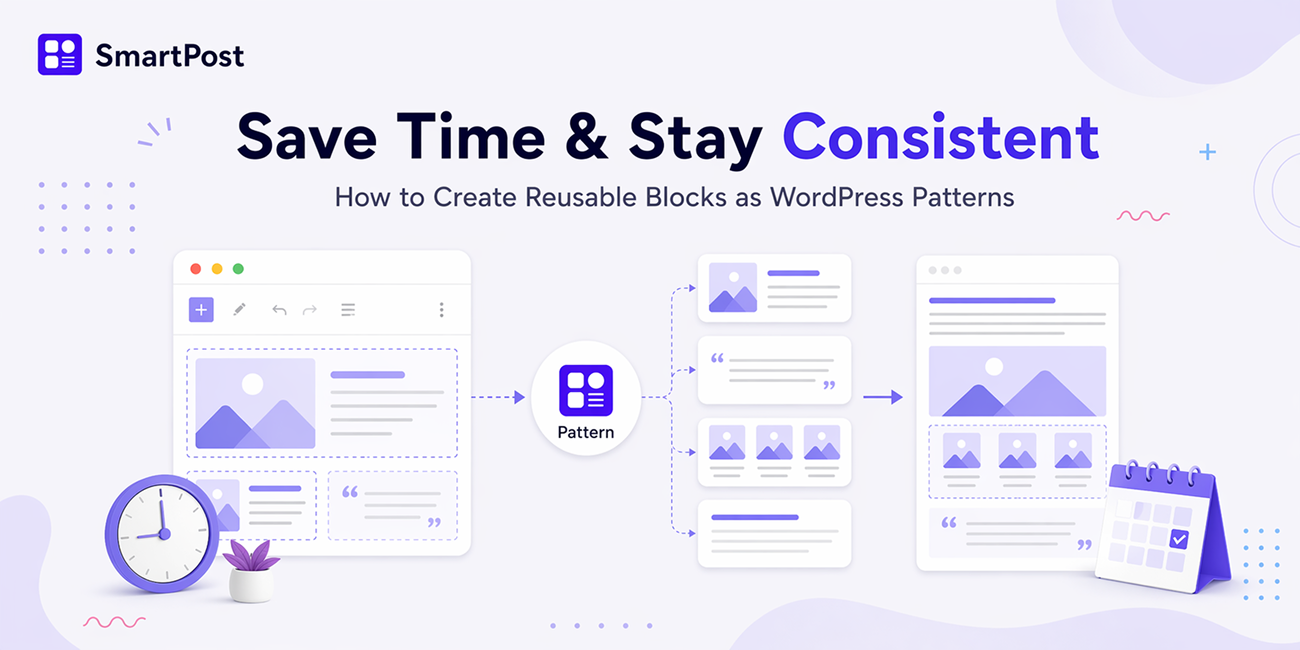
A WordPress Pattern allows you to save and reuse custom block layouts anywhere on your website. Think of it as creating a template for your post grids, sliders, or carousels. Once saved, you can add that exact design to any new page or post with just a couple of clicks, helping you build pages faster and maintain a consistent design across your site.
In this step-by-step guide, you’ll learn how to create Smart Blocks and save them as reusable WordPress Patterns. Let’s get started.
Before You Begin: To follow this tutorial, you first need to install and activate the Smart Post plugin on your WordPress website.
Step 1: Create a Post Showcase using Smart Post Blocks
First, you need to design the layout you want to reuse. This could be a post grid, a carousel, or a slider.
From your WordPress Dashboard, open the page or post where you want to create a Post Showcase.
Click the (+) Block Inserter button to open the block library.

Find the Smart Post blocks collection.
Choose a post layout such as Post Grid, Post Carousel, or Post Slider.

Insert the block into your page and customize it as needed. Add your desired categories, adjust the design, and style it to match your website.

Once your post block looks perfect, you’re ready to save it.
Step 2: Save the Smart Post Block as a WordPress Pattern
Saving your design as a pattern is incredibly simple. This is where you turn your one-time design into a reusable asset.
Select the Smart Post block you just created (for example, the Post Slider).
Click the Options (⋮) icon in the block toolbar.
From the dropdown menu, choose Create Pattern.

A popup will appear with a few settings to configure.

Here’s what they mean:
Name: Enter a descriptive name for the pattern. For example, “Homepage Post Slider” or “Blog Post Grid”.
Category: Choose an existing category to keep your patterns organized, or create a new one.
Synced: This is an important choice. You have two options:
- Enable (Synced): If you turn this on, any change you make to this pattern will update everywhere it is used on your site. This is great for global elements like a promotional banner that you want to be identical and easy to update in one place.
- Disable (Unsynced): If you leave this off, the pattern acts as a template or starting point. You can insert it and then customize that specific instance without affecting other uses. This is perfect for post layouts where the structure stays the same but the content changes each time.

Click Add to save your pattern to the WordPress Pattern Library.
Step 3: Reuse the Pattern Anywhere on Your Website
Now comes the magic part—using your saved pattern on a different page or post.
Open a new page or post where you want to use your saved pattern.
Click the (+) Block Inserter.
Switch to the Patterns tab at the top of the inserter panel.

Open the My Patterns section. This is where all the patterns you have created are stored.

Select your saved Smart Post pattern. It will insert into your editor instantly.

If you saved it as an unsynced pattern, feel free to edit, duplicate, or customize it as you want before you Save your page or post.
You now know how to leverage WordPress Patterns to save time and keep your design consistent. By following these three simple steps, you can stop rebuilding your post grids, carousels, sliders, timelines, and other Smart Post layouts from scratch. Use them as patterns anywhere on your site and focus on creating great content instead of repetitive design work.
Ready to Create More Stunning Post Layouts?
Now that you know how to save and reuse your designs, imagine what you could build with even more powerful blocks and features.
If you enjoyed using the Smart Post blocks in this tutorial, you’ll love exploring the full potential of the Smart Post plugin. It’s designed to help you build beautiful, content-rich websites with zero coding.
Here is what else you can look forward to:
- 60+ Advanced Blocks: Beyond grids and sliders, you get access to a huge library of blocks for building any type of page.
- 250+ Ready Patterns: Jumpstart your design with a vast collection of pre-made patterns for different niches and purposes.
- Complete Design Freedom: Customize colors, typography, and spacing with a powerful global design system. Set your styles once and apply them site-wide.
- Dynamic Site Builder: Build custom templates for your homepage, single posts, archive pages, categories, and more.
- Works with Everything: Smart Post plays nicely with all major WordPress themes and page builders like Elementor, Divi, and WPBakery.
Smart Post itself is packed with features that most websites will ever need, and it has a 4.9/5 happiness rating from users who love how easy it is to use. The plugin is also fully responsive, translation-ready, and built for speed.
So, why not give it a try?
If you have any questions, the friendly support team is always ready to help. You can also check out the detailed documentation and video tutorials to become a Smart Post expert in no time. Happy building.
Originally published at https://wpsmartpost.com/blog/ on July 7, 2026.